
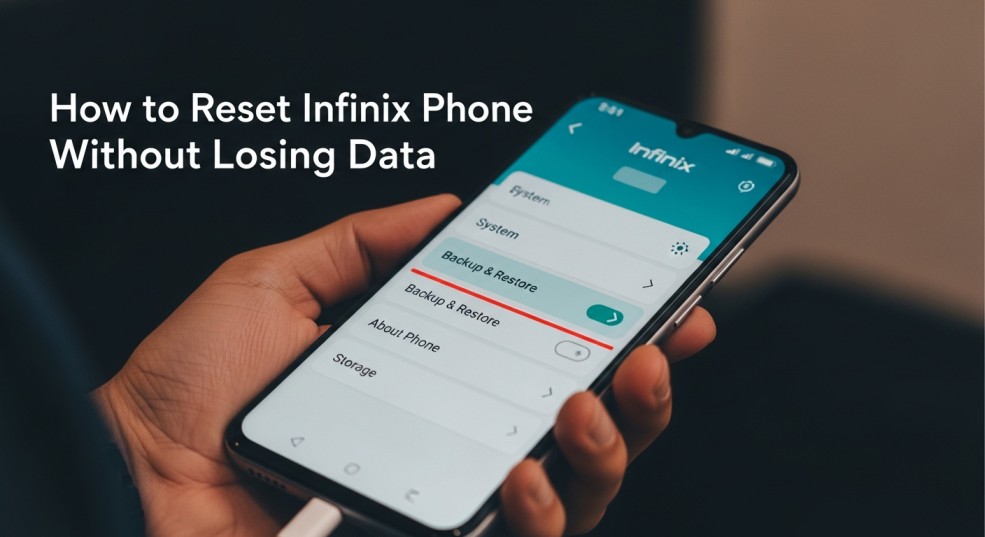
Have you ever felt your Infinix phone getting slow, hanging during calls, or taking forever to open apps? Don’t worry! You don’t always need to do a full factory reset that erases your pictures, messages, and favorite apps. In this guide, you’ll learn how to reset your Infinix phone without losing your data. It’s easy, safe, and perfect for cleaning up your device without starting from scratch.
Why You Might Want to Reset Your Infinix Phone
There are many reasons people reset their smartphones. Sometimes, it’s not because the phone is broken, but because it feels cluttered. A few common reasons include:
The phone is running slow or hangs often.
Too many apps cause lag or app crashes.
You want to remove bugs or glitches without deleting your files.
After a software update, your phone starts acting weird.
Settings got messed up, and you want to fix them quickly.
Resetting your Infinix phone can bring it back to smooth performance while keeping your personal data safe if you choose the right method.
Types of Resets on Infinix Phones
There are two main reset options on an Infinix phone. Each works differently, so it’s important to know what you’re doing.
| Reset Type | Description | Data Lost? | When to Use |
|---|---|---|---|
| Soft Reset | Restarting your device to fix small bugs or lag. | No ❌ | When your phone slows down or freezes. |
| Factory Reset | Erases all data and restores to default settings. | Yes ✅ | When you plan to sell or clean your phone completely. |
| Settings Reset | Resets system settings like Wi-Fi or Bluetooth only. | No ❌ | When you mess up system settings accidentally. |
For this guide, we’ll focus on soft reset and settings reset, since these methods don’t delete your personal files.
Method 1: Soft Reset (The Simple Restart)
The easiest way to reset without losing anything is through a soft reset. It’s like giving your phone a short nap to refresh its memory.
Follow these steps:
Press and hold the Power button.
Tap Restart when the menu appears.
Wait for the phone to reboot.
That’s it, your phone will restart, and you’ll notice smoother performance. Apps will load faster, and small issues may disappear.
Method 2: Reset Settings Without Deleting Data
If the problems are a bit more serious, like Wi-Fi not connecting or Bluetooth misbehaving, you can reset system settings only.
Here’s how to do it:
Open the Settings on your Infinix phone.
Scroll down and tap System.
Tap Reset options.
Select Reset Wi-Fi, mobile & Bluetooth or Reset app preferences.
Confirm your choice.
This will not delete photos, videos, or messages. It only resets your phone’s connection and system preferences.
Method 3: Backup and Partial Factory Reset
Sometimes you might decide a partial factory reset is necessary, but still want to keep your data safe. In this case, the secret is doing a full backup first.
Steps to Backup:
Go to Settings > Google > Backup.
Turn on Back up to Google Drive.
Make sure Contacts, SMS, Photos, and Apps are selected.
Wait for the backup to complete.
Once you’ve done that, continue with:
Go back to Settings.
Tap System > Reset options.
Choose Erase all data (factory reset).
Confirm your action.
After the reset finishes, sign back into your Google account. All your backed-up data will return automatically.
Tips to Avoid Data Loss During Reset
Before you reset, here are some must-do things to save your data safely:
Always back up your media files to Google Photos or an SD card.
Write down your Google account password—needed for re-login.
Remove your SD card or SIM card before resetting, just in case.
Use the XOS Backup Tool (available on many Infinix phones) for offline backup.
These small steps can save you from losing years of memories and useful data.
Common Problems After Reset & How to Fix Them
| Problem | Possible Solution |
|---|---|
| Can’t sign in to Google after resetting | Make sure you’re using the same email as before. If Google FRP is active, use your old account details. |
| Apps are missing after a reset | Reinstall from Google Play Store or restore from backup. |
| Contacts not showing | Turn on Contacts Sync under Google account settings. |
| Lag continues after reset | Try updating your phone software or checking storage for low space. |
Most minor problems can be solved just by updating the system or clearing the cache through the Storage settings.
Conclusion
Resetting your Infinix phone without losing data is not as scary as it sounds! You just need to pick the right method depending on your problem. A soft reset is great for small issues, while resetting settings helps fix connection glitches. And when needed, you can always do a full reset after backing up everything safely.
With these steps, your Infinix phone can feel new again—without saying goodbye to your favorite photos, chats, or songs. So go ahead, give your phone that fresh start it deserves.
FAQs: How to Reset Infinix Phone Without Losing Data
1. Will I lose my photos if I reset my Infinix phone?
No, if you use the “Reset settings” or “Soft reset” methods. Only a factory reset deletes your photos.
2. How can I backup my data before resetting?
Use Google Drive backup or the XOS Backup Tool for a full backup of apps, contacts, and messages.
3. What should I do if my phone is still slow after reset?
Clear cache data, uninstall unused apps, or check for system updates.
4. Does resetting improve battery life?
Yes! It can help, especially if apps were draining the battery in the background.
5. Can I reset my Infinix phone without a password?
Yes, but this only works if your phone is unlocked first. For locked phones, you may need the account password during setup.

Infinix Firmware Team
Kaushal Kumar

InfinixFirmware.com brings you the most reliable mobile technology updates, from the latest smartphone news and new launches to detailed specifications and trusted firmware solutions. Backed by over 5 years of hands-on experience in Android firmware and mobile repair, our team delivers 100% verified flash files, official stock ROMs, and step-by-step guides to ensure your device runs at its best. 📧 contact7079@gmail.com